
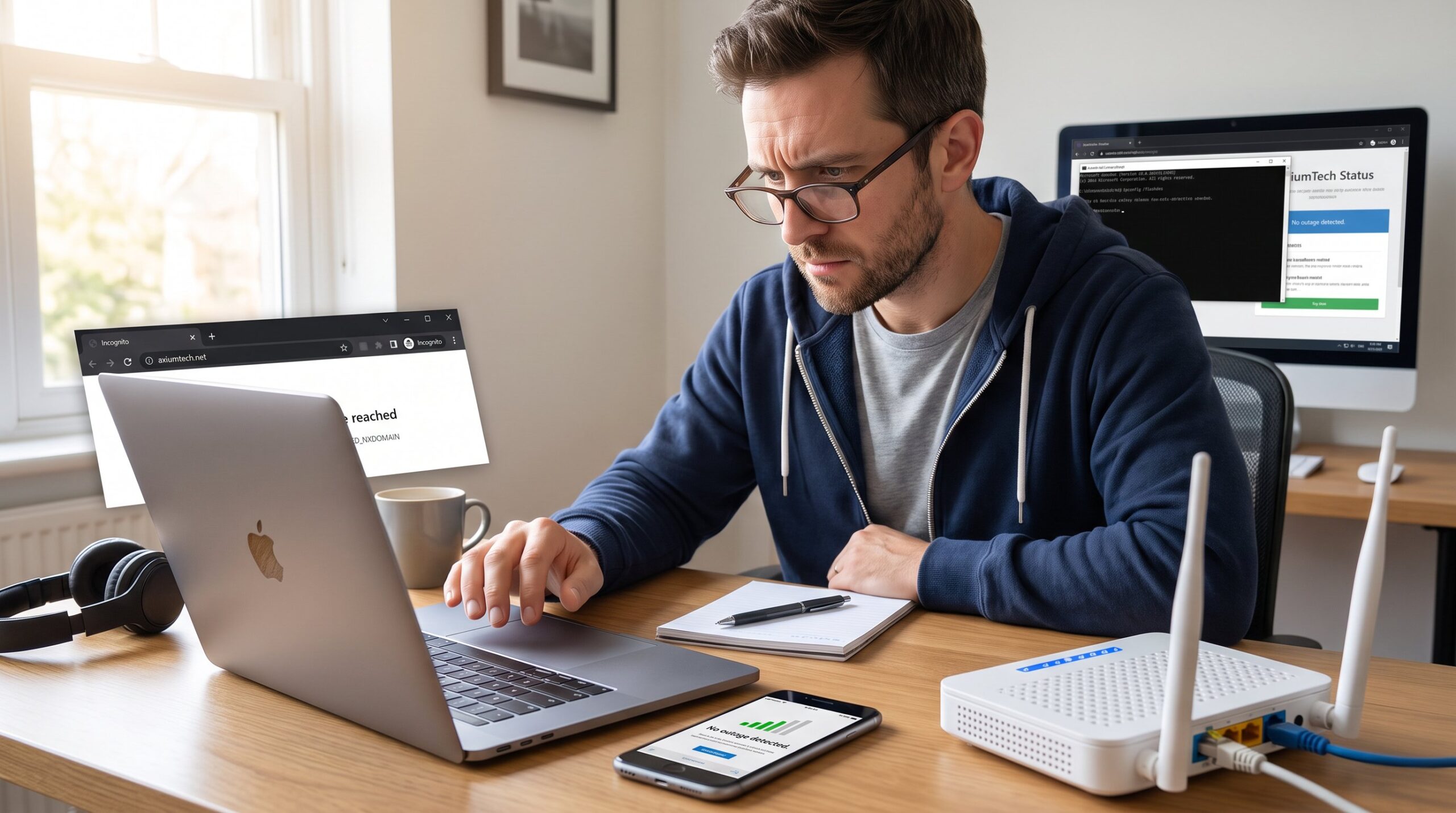
What to Do If AxiumTech.net Will Not Load: when axiumtech.net refuses to appear, people lose access to news, tech guides, and health posts they rely on. This guide gives clear, step-by-step actions readers can do in about five minutes and deeper fixes if the problem persists. It focuses on browser, network, and DNS checks, plus site-status verification and reporting paths so they can restore access or gather the error details needed for support.
Key Takeaways
- Restart your browser, try incognito mode, update the browser, and reboot your device to fix common loading issues with AxiumTech.net.
- Clear cache and cookies, then disable browser extensions one by one to identify any blockers affecting site access.
- Reboot your router, flush DNS caches, and test the site on alternate networks to troubleshoot local network or DNS problems.
- Check firewalls and security software settings to allow AxiumTech.net if it is being blocked locally.
- Use third-party outage checkers to verify if AxiumTech.net is down globally and monitor official channels for updates.
- If problems persist, record error codes and contact AxiumTech support or your ISP with detailed information for faster resolution.
Quick Troubleshooting Checklist (Try These First — 5 Minutes)
Fact first: try simple browser and device resets, these fix a surprising number of loading problems. If axiumtech.net won’t load, begin with a five-minute checklist to rule out the easy causes.
Restart, Incognito Mode And Update Steps
Start by closing all browser windows and reopening. Then open a private/incognito window and navigate to axiumtech.net. Private mode bypasses most cached files and disables extensions by default: if the site appears there, the problem likely lies with cached data or an extension.
Next, ensure the browser is current. On Chrome, Edge, Firefox, or Safari update the app and retry. If a VPN or proxy is active, they should be turned off temporarily, some VPN exit nodes block or route traffic in odd ways. Finally, restart the device: a full reboot clears transient networking glitches. These steps often resolve timeouts or partial page loads within minutes.
Clear Cache, Cookies And Disable Browser Extensions
If private mode worked, clear the browser cache and cookies for axiumtech.net or for all sites. In most browsers the menu path is Settings → Privacy → Clear Browsing Data. Remove cached images and cookies, then reload.
If clearing data doesn’t help, disable ad blockers, script blockers, privacy extensions, and security add‑ons. Disable them all, reload axiumtech.net, then re-enable one at a time until the culprit appears. This isolates which extension blocks scripts or resources the site needs. If the page loads after disabling an extension, note its name and behavior, that detail helps when reporting the issue to the extension developer or to AxiumTech support.
Network, DNS And Firewall Fixes (When Basics Don’t Work)
Fact first: local network or security rules commonly stop a single site from loading even when other websites work. If the quick checks fail, move to network and firewall troubleshooting.
Flush DNS, Reset Router And Check Local Firewalls
Begin with a router reboot, power the unit off for 30 seconds and power it on again. This clears NAT and routing tables that sometimes misroute domain lookups. Next, test axiumtech.net from a different network: switch to a mobile hotspot or a neighbor’s Wi‑Fi (with permission). If it loads on a cellular network but not your home Wi‑Fi, the issue is local.
On Windows run ipconfig /flushdns from an elevated Command Prompt to clear the DNS cache: on macOS run sudo dscacheutil -flushcache: sudo killall -HUP mDNSResponder. After flushing, restart the router so devices request fresh DNS from your ISP.
Check local firewalls, parental controls, or corporate filters. Temporarily disable endpoint security or firewall software: if the site loads, create an allow rule specifically for axiumtech.net. If a company policy blocks the domain, contact the network administrator and share the specific error codes (timeout, DNS error, 403/5xx) so they can whitelist the site.
Check Site Status, Outage Trackers, Reporting And Temporary Workarounds
Fact first: determine whether the problem affects only one person or everyone. Use third‑party outage checkers to see if axiumtech.net is down globally. If multiple checkers report an outage, wait for restoration or follow official channels for updates.
If only a single user is affected, gather error details: the browser error text, status codes (403, 404, 500, 502, 503), and the approximate time the error occurred. Those details speed up resolution when contacting support or an ISP.
When the site is down globally, official social channels or company status pages often post updates. If AxiumTech posts status notes or cached pages exist, users can retrieve contact email addresses or guidance. For readers who want context on the site’s coverage and official channels, the pillar overview on the site explains where to find updates and contact points: see the short guide to site content for orientation: site overview.
Temporary workarounds: if HTTPS certificate warnings appear, the problem may be TLS/SSL related: users should avoid bypassing warnings for sensitive actions but can use cached text or archived pages for research. For visitor-facing outage examples, major platforms have had multi‑hour outages in the past, which shows that waiting and monitoring official notices is often the safest choice (a comparable event was covered at TechCrunch).
Conclusion
If AxiumTech.net still will not load after these steps, capture the exact error messages and times, then contact AxiumTech support or your ISP with those details. Precise error codes and the sequence of steps already tried are the best currency for resolving site access problems quickly.